You pay for 500 Mbps internet. You run a speed test next to your router and feel like a genius: crisp, clean numbers.
Then you sit down on your couch, open a video on your phone, and get hit with the spinning wheel of death.
Your first instinct? Head over to Amazon, search for a cheap “Wi-Fi booster,” plug it into a hallway socket, and pray.
Don’t buy it. Nine times out of ten, cheap plug-in Wi-Fi extenders only amplify a bad signal. You’re essentially giving a megaphone to someone who is whispering from two rooms away. Loud static is still static.
Before you spend a single dollar, let’s walk through what’s actually killing your connection—and the three tweaks that fix it for free (or close to it).
1. Where Is Your Router Hiding?
Be honest. Is it tucked behind the smart TV, buried inside a wooden credenza, or sitting on the floor behind a dusty tangle of cords?
Wi-Fi signals are high-frequency radio waves. They hate obstacles. Specifically:
- Metal and mirrors: These act like acoustic walls. If your router sits next to a large mirror or behind a metal cabinet, half your signal bounces right back into the wall.
- Brick and plaster: Standard drywall drops signal by about 10–15%. Old-school plaster with metal lath or concrete can wipe out 80% of it.
- Fish tanks and large plants: Water absorbs 2.4 GHz and 5 GHz radio frequencies exceptionally well. A 50-gallon aquarium might as well be a lead vault.
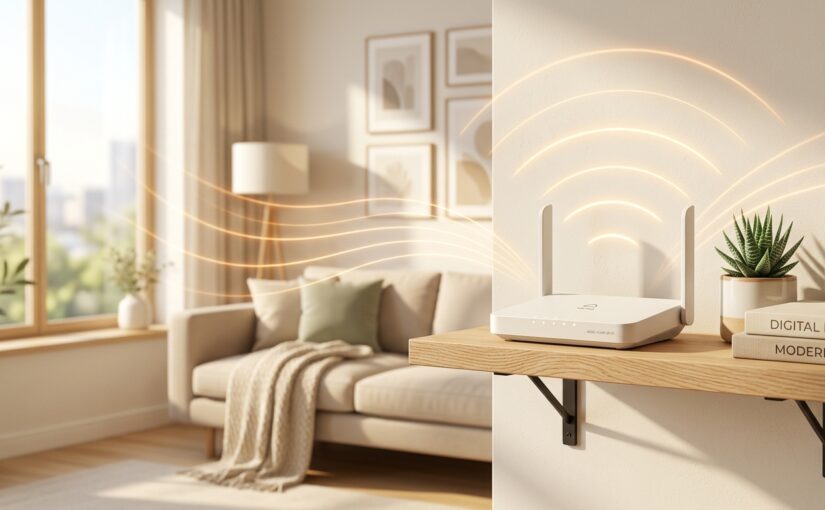
The Fix: Pull it out. Put it at waist height or higher on an open shelf, centered in the house whenever possible. Just getting it off the floor and out from behind the entertainment center can double your signal reach in the rooms you care about.
2. The 2.4 GHz vs. 5 GHz Trap
Most routers broadcast two networks: 2.4 GHz and 5 GHz (or 6 GHz if you have Wi-Fi 6E/7).
Here’s the difference in plain English:
- 5 GHz is a sports car on an open highway. Blazing fast, but it can’t handle speed bumps (walls).
- 2.4 GHz is an old pickup truck. It’s slower and crowded with interference from your microwave and baby monitors, but it punches through walls like a champ.
If your router combines both bands under a single name (often called “Smart Connect” or “Band Steering”), your device might get stuck on the sluggish 2.4 GHz band and never switch back.
The Fix: Log into your router’s settings (usually written on a sticker on the bottom) and see if you can separate the networks. Name one HomeNetwork_5G and the other HomeNetwork_2G.
Put your work laptop, gaming console, and streaming boxes on the 5 GHz band. Leave your smart light bulbs, robot vacuum, and garage openers on the 2.4 GHz network.
3. The ISP Rental Myth
Are you still using the all-in-one modem/router combo your internet provider handed you three years ago?
Check your bill. If you see a $10–$15 monthly “equipment fee,” you’ve probably bought that device twice over by now.
Worse, provider-supplied units are built to be cheap and reliable enough to stop you from calling support—not to blanket a multi-story home with high-speed coverage.
The Fix: If your house is over 1,800 square feet, drop the single router dream. Skip the cheap plug-in boosters and look at a Mesh Wi-Fi system (like Eero, TP-Link Deco, or Asus ZenWiFi). A two-pack or three-pack creates a seamless net across your home without separate network names or awkward disconnects.
Quick 60-Second Sanity Check
Try this right now:
1. Walk to your router.
2. Unplug the power cable, wait 30 seconds (yes, actually 30 seconds—let the capacitors drain), and plug it back in.
3. Move the router out into the open air.
If that doesn’t solve your dead spot, shoot us a message or leave a comment below with your home layout. We’ll tell you the exact setup that makes sense without wasting money on gear you don’t need.