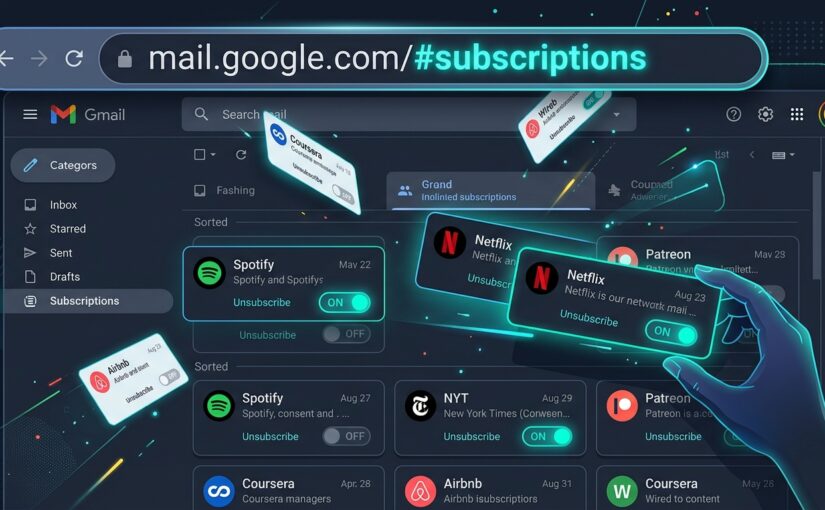
Type 3 Letters in Your Gmail URL to Instantly Clean Up Junk Mail

If your Gmail inbox looks anything like mine on a Monday morning, it’s probably drowning in a sea of promotional flyers, automated newsletters you don’t remember signing up for, and daily “deals” you never asked to see.

Most people handle this in one of two ways. Either they give up and let thousands of unread emails pile up forever, or they waste hours opening individual emails, scrolling to the bottom, squinting for the tiny gray “unsubscribe” link, and praying it actually works.

Some folks even turn to third-party inbox cleaner apps. Please don’t do that. Handing a random app full read-and-delete access to your private email just to clear out spam is a privacy nightmare waiting to happen.

There is a much cleaner way. Google built a native subscription manager right inside Gmail—and you can jump straight to it with a dead-simple three-letter URL trick.


The 3-Letter Address Bar Trick

You don’t need to dig through buried settings menus or wait for a sidebar rollout. You can trigger the dashboard instantly right from your browser.

Here’s all you do:

  1. Open Gmail on your computer browser.
  2. Look up at your browser’s address bar. The URL normally ends with something like:
    https://mail.google.com/mail/u/0/#inbox
  3. Highlight just the word inbox at the very end and replace it with sub.
  4. Press Enter.

Your address will now read: https://mail.google.com/mail/u/0/#sub.

Instantly, Gmail bypasses your inbox feed and opens the hidden Manage Subscriptions dashboard.


What the “Manage Subscriptions” Hub Actually Does

Once you’re in, Gmail gives you a clean, bird’s-eye audit of every sender blasting your inbox. Google categorizes them by volume so you can spot the worst offenders immediately:

  • High-Frequency Spammers: Senders bombarding you with dozens of emails a month get flagged right at the top.
  • Estimated Message Count: You’ll see roughly how many messages each sender dumped into your inbox over the recent quarter (e.g., “10+ emails/quarter”).
  • 1-Click Native Unsubscribe: Next to each sender is an official Unsubscribe button. Click it, and Gmail handles the server-level unsubscribe request automatically—without redirecting you to some shady third-party confirmation page.

Pro-Tip: If you use multiple Google accounts (like a work account and a personal one), the number in the URL (/u/0/ or /u/1/) tells Gmail which profile you’re looking at. Just leave the number alone and only swap out the word after the hashtag.


Why You Should Ditch 3rd-Party “Clean Your Inbox” Tools

As an IT specialist, one of the most common issues I see on personal laptops is folks granting OAuth tokens to sketchy “Inbox Cleaner” web apps. Years ago, researchers caught popular inbox cleaning services harvesting user emails and selling anonymized shopping data to marketing firms.

You don’t need them. Using Gmail’s native #sub view gives you the exact same bulk-cleanup power, keeps your data strictly inside your existing Google account, and takes less than thirty seconds to run.

Try typing it into your browser bar right now. You might be surprised at who has been filling your inbox without you noticing.
Why Changing Your Gmail Password Isn’t Enough: The Hidden Delegation Backdoor You Need to Check Right Now

Imagine this chilling scenario: You suspect something is off with your email. You do everything the cybersecurity textbooks tell you to do—you change your password to a 20-character fortress, turn on Two-Factor Authentication (2FA), and hit “Sign out of all other web sessions”.

You breathe a sigh of relief. You think you’re completely safe.

Yet, weeks later, you discover the shocking truth: someone has still been reading your private emails, tracking your bank alerts, and monitoring your personal conversations in real time.

How is this even possible? Did a hacker deploy sophisticated spyware? Did Google have a catastrophic zero-day breach?

The answer is much simpler—and far more unsettling. It’s a legitimate, built-in Gmail feature that operates as a silent backdoor if someone had access to your unlocked screen for just two minutes.


The Culprit: Gmail Account Delegation

Inside Gmail lies a productivity tool called Account Delegation (“Grant access to your account”).

Originally engineered for executives who need an executive assistant to organize their inbox, or teams sharing a common mailbox, delegation allows another Google account to:

  • Read all your incoming and outgoing emails.
  • Send new emails on your behalf.
  • Delete or archive sensitive messages.
  • Access your contacts list.

Here is the dangerous catch:

A delegated user does not log into your account with your password. They log into their OWN Gmail account and switch to your inbox from their profile menu.

Because they access your emails from their own credentials:

  • Changing your password does not remove them.
  • Enabling 2FA does not block them.
  • Clicking “Sign out of all sessions” does not revoke their access.
  • You won’t get suspicious login notifications because nobody is logging into your account.

All it takes is an ex-partner, a jealous coworker, an abusive acquaintance, or someone who borrowed your unlocked laptop for a coffee break to add their email address to your delegation list. Once accepted, they have permanent, invisible visibility into your digital life.


How to Check and Close the Backdoor Right Now

Checking your Gmail for unwanted access takes less than 60 seconds. Grab your computer (this must be done in the desktop web browser, as mobile apps don’t display all advanced settings) and perform these 4 quick audits:

1. Check for Unauthorized Delegates

  1. Open Gmail on your computer.
  2. Click the Settings gear icon in the top-right corner and select “See all settings”.
  3. Click on the “Accounts and Import” (or “Accounts”) tab at the top.
  4. Scroll down to the section titled “Grant access to your account”.
  5. Inspect the list: If you see any email address you didn’t personally add, click “Delete” immediately.

2. Check for Sneaky Forwarding Rules & Hidden Filters

Another classic backdoor tactic is setting up silent forwarding rules or automated filters that instantly copy incoming mail to an outside address or mark security warnings as “Read” and “Archive”.

  • While still in Gmail Settings, click the “Forwarding and POP/IMAP” tab. Verify that no unrecognized address is receiving forwarded copies of your mail.
  • Click on the “Filters and Blocked Addresses” tab. Review every rule listed. Look out for suspicious instructions like “Matches: from(*) Do this: Forward to evil@example.com, Delete it”. If you see anything you didn’t create, delete it.

3. Audit Third-Party App Permissions

Sometimes access isn’t a person—it’s an abandoned browser extension, a forgotten email cleaner app, or a compromised productivity tool that requested full access to your Google mailbox.

  1. Go to your Google Account Connected Apps.
  2. Review apps with “Full Account Access” or access to Google Drive/Gmail.
  3. Revoke permissions for anything you don’t actively recognize, trust, or use every week.

4. Run the Official Google Security Checkup

Lastly, visit myaccount.google.com/security-checkup. Google will walk you through:

  • Active devices logged into your account (remove old phones or unrecognized sessions).
  • Recent security events (password changes, unrecognized sign-in attempts).
  • Recovery phone numbers and backup email addresses (ensure an intruder hasn’t replaced your number with theirs).

The Takeaway: Trust, but Always Verify

We often assume that a strong password and two-factor authentication make us bulletproof. But technology platforms are full of subtle collaboration features that can become surveillance tools in the wrong hands.

Set a calendar reminder every six months to audit your Gmail settings. It takes under two minutes, and it guarantees that when you close your laptop, your inbox stays strictly between you and your recipients.

Have you ever audited your delegation settings before? Take a moment today to check—you might just be surprised by what you find.