The 3-2-1 Backup Rule: How to Never Lose Family Photos or Tax Records Again

There are two types of computer owners: those who have lost all their data, and those who are about to.

It usually happens on a random Tuesday. You knock a mug of coffee across your MacBook keyboard. Or your laptop takes a tumble off the kitchen island. Or your PC screen turns blue with an error code that sounds like bad sci-fi dialog: CRITICAL_PROCESS_DIED.

You rush it to a repair desk. The tech looks up with that grim doctor face and says the words nobody wants to hear: “The drive is toasted. Did you have a backup?”

Most people say no. Or worse: “I think my phone was syncing something, maybe?”

Data recovery labs charge anywhere from $500 to $2,500 to pull files from a dead drive—with zero guarantee they’ll salvage anything.

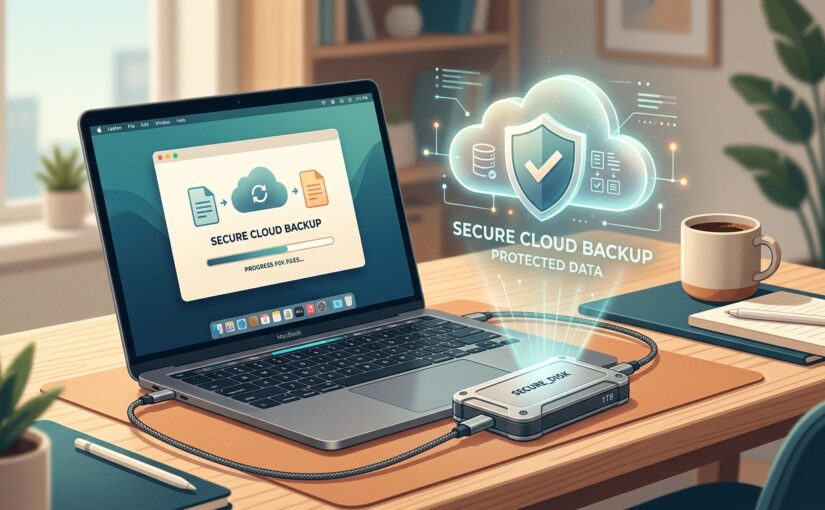
You don’t need expensive enterprise software to protect yourself. You just need the classic 3-2-1 Backup Rule, adapted for regular people.


What Is the 3-2-1 Rule?

It sounds like technical jargon from an IT seminar. It isn’t. Break it down:

  • 3 copies of your important files (your working copy on your computer, plus two backups).
  • 2 different storage types (for example, your laptop drive and an external USB hard drive).
  • 1 copy stored off-site (in the cloud or kept at another location).

Here’s why having just one backup isn’t enough: If your house has a power surge or a burst pipe, both your laptop and the external hard drive sitting right next to it can get fried at the exact same moment.

One copy off-site saves you when physical reality strikes.


The Cheap, Painless Setup (Step-by-Step)

You can set this up once and practically forget about it. Here is the exact combination we recommend to friends and family:

#### 1. The Local Backup (Fast & Full-System)

Buy a basic 1TB or 2TB external SSD or portable hard drive (WD My Passport or Samsung T7—usually around $60 to $110).

  • On Mac: Plug it in and click Use as Backup Disk when Time Machine prompts you. Time Machine silently takes snapshots every hour. If your laptop dies, you plug this drive into a new Mac and your desktop looks identical down to your wallpaper.
  • On Windows: Use the built-in File History tool (or an inexpensive tool like Macrium Reflect). Point it to your external drive, set it to run daily, and let it do its thing.

#### 2. The Cloud Backup (Fire, Flood, and Theft Insurance)

Syncing is not the same as a backup.

If you use Google Drive, Dropbox, or OneDrive, remember this: if a virus encrypts your files or you accidentally delete a critical folder, that deletion syncs everywhere in three seconds flat.

For true set-it-and-forget-it cloud backup, use an unlimited background backup service like Backblaze (around $9/month).

  • Install the lightweight client.
  • Let it quietly upload your Documents, Photos, and Desktop in the background.
  • Done. If someone steals your backpack at an airport, your entire digital life is waiting in the cloud.

What Deserves to Be Backed Up?

Don’t waste time backing up things you can easily redownload:

  • Skip Steam game installs, Spotify downloads, and your browser cache.
  • Focus on the irreplaceable: tax returns, family photo albums, financial spreadsheets, scans of medical records, and your work documents.

The 10-Minute Weekend Test

Having a backup you’ve never tested is just having a wish.

This Saturday, test your setup:

1. Open your external drive or log into your cloud account.

2. Find a photo or document from three months ago.

3. Restore it to a test folder on your desktop and make sure it opens.

If it works, congratulations: you’re officially ahead of 90% of computer users.

The Fortress Cockpit Paradox: How Tech Can Stop Rogue Pilots Before It’s Too Late

On September 30, 2026, Flydubai Flight FZ1073 was cruising toward Tel Aviv with 174 passengers aboard when a nightmare unfolded at 35,000 feet: the first officer grabbed the cockpit’s emergency crash axe and attacked the captain from behind.

What followed was a desperate, bloody struggle on the flight deck. The captain suffered catastrophic injuries, but with his final ounce of strength, he dragged himself across the floor and pulled the latch to unlock the armored cockpit door.

Off-duty crew and passengers heard the screams, stormed inside, subdued the attacker, and managed an emergency landing in Tabuk, Saudi Arabia. If that captain hadn’t reached the latch in time, the plane would have slammed into the ground. Nobody inside the passenger cabin could have broken in to save them.

That terrifying near-miss exposed a glaring flaw in modern aviation security. It’s a problem familiar to every cybersecurity engineer: The Fortress Paradox. When you build an impenetrable wall to keep the outside world out, you accidentally lock everyone inside with the threat.


How 9/11 Created a Zero-Trust Nightmare

After September 11, international regulators mandated bulletproof, Kevlar-reinforced cockpit doors with electronic deadbolts. The rule was clear: hijackers must never, under any circumstances, force their way into the flight deck.

It worked against external hijackers. But it created a massive blind spot: the insider threat.

We saw it with Germanwings 9525 in 2015, where the co-pilot locked the captain out during a bathroom break and flew an Airbus A320 into the French Alps. We saw it on FedEx 705 back in 1994, where a deadheading flight engineer tried to slaughter the crew with claw hammers. And now, Flydubai 1073.

Right now, if one pilot decides to attack the other, the victim’s only lifeline is physical strength. That is an unacceptable engineering failure in 2026. Here is how modern technology can solve it.


1. Independent Silent Duress Switches (The Bank Teller Model)

Every bank teller has a silent foot-switch under their counter. Cockpits have transponder squawk codes (like 7500 for hijacking), but dialing a 4-digit code into a radio panel while someone is swinging an axe at your head is impossible.

Both pilot seats need concealed, tactile duress switches—either built into the rudder pedal assembly, under the armrest, or behind the sidestick.

  • Instant Alert: A single 2-second press immediately transmits a high-priority duress signal to Air Traffic Control (ATC) and sounds a silent visual alert on the flight attendant interphone panels.
  • Door Latch Override: Tapping the emergency switch automatically disarms the cockpit door’s internal deadbolt lock for 60 seconds, allowing cabin crew to enter using their emergency keypad PIN without waiting for pilot approval.

If Captain Machchhar had a floor switch, he wouldn’t have had to crawl across the floor while bleeding to let help in.

2. Smart Retention & Interlocks for the Crash Axe

Every commercial airliner cockpit carries a heavy metal crash axe behind the pilot’s seat. It’s mandated by international regulations for firefighting, prying open jammed panels, or chopping through cockpit walls during an emergency egress.

Think about the absurdity of this setup: a deadly weapon hangs within arm’s reach inside an enclosed, locked space with zero monitoring.

The fix is simple physical security:

  • Magnetic Interlock Sensors: The axe should sit in an electronically monitored holster. The second the tool is unlatched during cruising flight, an audible alarm triggers in the flight deck and sends an alert to the cabin chief.
  • Impact & Depressurization Release: Keep the axe locked behind an electronic latch that only releases automatically when cabin pressure drops, on fire detection, or upon impact sensors—or via a dual-pilot confirmation button.

3. Cryptographic Remote Ground Unlock (Air-to-Ground 2FA)

Whenever you mention remote-controlling anything on an airplane, aviation engineers cringe. And with good reason: nobody wants hackers breaking into an aircraft via SATCOM Wi-Fi.

Remote door unlocking doesn’t need to touch the flight controls. It can operate on a completely air-gapped, zero-trust hardware architecture.

Here is how it can work securely:

  • Dual-Custody Key Authorization: Just like launching a missile or transferring billions in corporate funds, a ground unlock requires two digital cryptographic signatures—one from the airline’s Chief Flight Dispatcher and one from National Air Traffic Control.
  • Hardware Security Module (HSM): An onboard cryptographic chip verifies the signed command over SATCOM (ACARS). Once verified, the chip pulses a 12-volt relay directly to the door solenoid, dropping the lock.
  • Zero Control Surface Access: The circuit connects only to the door latch magnet. It has zero bus connection to the autopilot, fly-by-wire computers, or engine FADEC. Even if a bad actor spoofed the key, all they could do is pop a door latch—not steer the plane.

4. Autonomous Envelope Protection (Emergency Autoland)

During the struggle on Flydubai 1073, the aircraft plunged over 16,000 feet in roughly 30 seconds. In Germanwings 9525, the co-pilot dialed the autopilot altitude down to 100 feet.

General aviation already solved this with systems like Garmin Emergency Autoland. With a single button press—or when flight computers detect an incapacitated pilot—the system calculates terrain, communicates with ATC, flies the plane, lowers the gear, and lands automatically on the nearest runway.

Adapting this to commercial airliners provides the ultimate safeguard: if an uncommanded dive or violent flight deck telemetry is detected while an emergency duress switch is active, the aircraft overrides irrational flight inputs, levels off at a safe altitude, and squawks an automatic MAYDAY.


The IT Takeaway: Security That Doesn’t Blind Itself

In IT, we learned long ago that perimeter security alone is a death trap. If your firewalls keep the world out but you grant unrestricted, unmonitored privileges to someone sitting on the internal network, you haven’t built security—you’ve built an illusion.

Aviation fixed the external threat in 2001. Now it’s time to fix the inside. A captain shouldn’t have to survive an axe strike and drag themselves across the floor just to get someone to open a door.

Why the Top Link on Google Is Now the Most Dangerous Click on the Internet

Here is a common scenario: You just set up a brand new computer or need to play a video file. You open your browser, type “VLC Media Player” or “7-Zip” into Google, and click the very first link at the top of the search results.

The website looks completely legit. It has the official logo, screenshots, and a big blue “Download Now” button. You download the installer, double-click it, and… maybe an error pops up, or maybe the software actually installs.

What you don’t realize is that in the background, a silent piece of malware just vacuumed up every saved password in your browser, grabbed your active login cookies (bypassing Two-Factor Authentication), copied your autofill credit cards, and sent them to a server overseas.

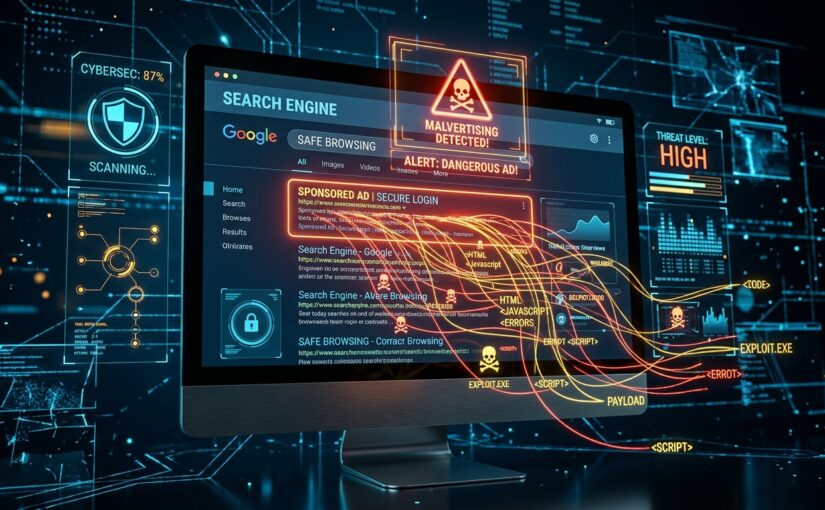
Welcome to Search Engine Malvertising—one of the fastest-growing cyber threats that the FBI recently had to issue a nationwide warning about.


How Criminals Buy the #1 Spot on Google

For decades, we’ve been conditioned to believe that the top search result on Google is the most authoritative and trustworthy source. Cybercriminals know this, and they exploit that trust mercilessly.

Instead of trying to hack Google or spend years on SEO, hackers simply purchase Google Search Ads. Because paid ads appear at the very top of the page—above all organic search results—their malicious links get clicked first.

Popular targets frequently impersonated in Google Ads include: VLC Media Player, OBS Studio, Notepad++, AnyDesk, 7-Zip, WinRAR, Canva, GIMP, and various cryptocurrency wallets.

Why Doesn’t Google Block These Ads Instantly?

You might wonder: “Doesn’t Google review every ad before it goes live?”

They do, but attackers use a clever evasion technique known as cloaking:

  • When Google’s automated verification bot scans the ad link, the server detects the bot and serves a completely harmless, squeaky-clean website (like a generic software blog or travel guide). The ad gets approved.
  • When a real human user clicks the ad from Google Search, the server detects a genuine visitor and redirects them to an identical clone of the real software’s website hosted on a lookalike domain (for example, vlc-download-app.com instead of videolan.org).

The Dangerous Payload: “Infostealers”

These fake installers typically bundle notorious infostealers like Lumma, RedLine, or Vidar. These programs don’t lock your screen demanding ransom—they operate in total stealth:

  • They harvest all usernames and passwords saved inside Chrome, Edge, Firefox, and Brave.
  • They steal your session tokens (cookies). This means an attacker can paste your cookies into their browser and log directly into your Amazon, Google, or bank account—without ever needing to enter your password or pass 2FA.
  • They scan your clipboard for crypto wallet addresses and replace them with the attacker’s wallet.

How to Protect Yourself: 4 Simple Rules

1. Train Your Eyes to Skip the “Sponsored” Badge

Whenever you search for software, drivers, or financial tools, pause for a second before clicking. Look at the tiny text right above the link title:

  • If you see “Sponsored” or “Ad”, skip it entirely.
  • Scroll down to the first organic result. The official website will almost always be the top organic result with the clean, recognizable domain name.

2. Install a Content Blocker (It’s a Security Tool, Not Just a Convenience)

Many people view ad blockers as a way to avoid annoying popups or YouTube ads. In today’s threat landscape, a good open-source content blocker like uBlock Origin is a critical security layer.

Content blockers automatically hide search engine sponsored ads and block known malicious redirect domains, effectively defusing the trap before you can ever click it.

3. The IT Pro Secret: Use Windows Package Manager (winget)

Why search sketchy websites at all when Windows has a built-in, verified app repository? If you are on Windows 10 or 11, you can install trusted software in seconds without even opening a browser:

  1. Press Windows Key + X and choose Terminal (or PowerShell).
  2. Type: winget install VideoLAN.VLC or winget install 7zip.7zip and press Enter.

Windows downloads the authentic, hash-verified installer directly from the official source repository. Zero ads, zero fake download buttons, zero malware.

4. What If You Think You Already Ran a Fake Installer?

If you recently downloaded an app and noticed odd behavior (like a command prompt flashing briefly, or the app never actually opening):

  1. Disconnect immediately: Unplug Ethernet or disconnect from Wi-Fi to stop ongoing data exfiltration.
  2. Use a DIFFERENT clean device: Do NOT change passwords from the infected computer. Use your smartphone to log into your primary accounts (Google, Apple, banking, password manager).
  3. Terminate active sessions: In your account security settings, click “Log out of all devices” or “Revoke all sessions” to invalidate any stolen session cookies.
  4. Run an offline scan: Perform a full scan using Windows Defender Offline or a rescue USB drive with Malwarebytes.

The Bottom Line

Google search is still an incredible tool, but search engine ads have become a digital minefield for everyday software downloads. Take an extra two seconds to verify the real domain, install an ad blocker on all family devices, and remember that being at the top of Google doesn’t mean it’s safe.

Why Changing Your Gmail Password Isn’t Enough: The Hidden Delegation Backdoor You Need to Check Right Now

Imagine this chilling scenario: You suspect something is off with your email. You do everything the cybersecurity textbooks tell you to do—you change your password to a 20-character fortress, turn on Two-Factor Authentication (2FA), and hit “Sign out of all other web sessions”.

You breathe a sigh of relief. You think you’re completely safe.

Yet, weeks later, you discover the shocking truth: someone has still been reading your private emails, tracking your bank alerts, and monitoring your personal conversations in real time.

How is this even possible? Did a hacker deploy sophisticated spyware? Did Google have a catastrophic zero-day breach?

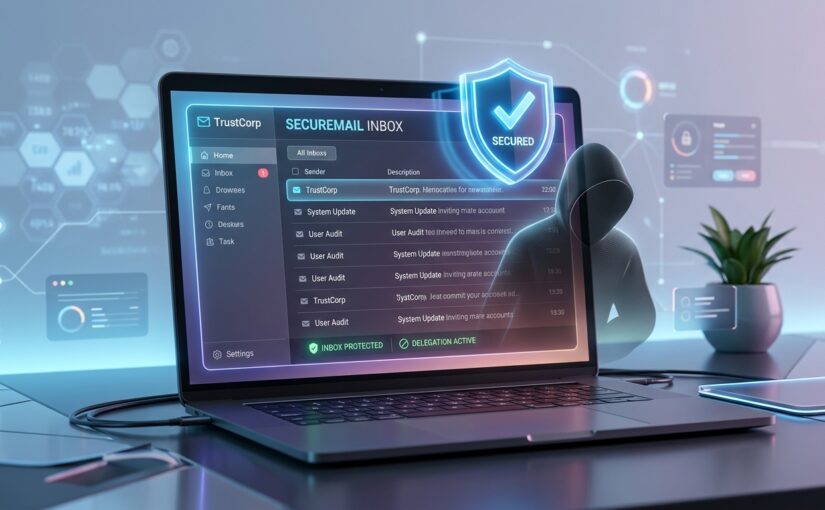
The answer is much simpler—and far more unsettling. It’s a legitimate, built-in Gmail feature that operates as a silent backdoor if someone had access to your unlocked screen for just two minutes.


The Culprit: Gmail Account Delegation

Inside Gmail lies a productivity tool called Account Delegation (“Grant access to your account”).

Originally engineered for executives who need an executive assistant to organize their inbox, or teams sharing a common mailbox, delegation allows another Google account to:

  • Read all your incoming and outgoing emails.
  • Send new emails on your behalf.
  • Delete or archive sensitive messages.
  • Access your contacts list.

Here is the dangerous catch:

A delegated user does not log into your account with your password. They log into their OWN Gmail account and switch to your inbox from their profile menu.

Because they access your emails from their own credentials:

  • Changing your password does not remove them.
  • Enabling 2FA does not block them.
  • Clicking “Sign out of all sessions” does not revoke their access.
  • You won’t get suspicious login notifications because nobody is logging into your account.

All it takes is an ex-partner, a jealous coworker, an abusive acquaintance, or someone who borrowed your unlocked laptop for a coffee break to add their email address to your delegation list. Once accepted, they have permanent, invisible visibility into your digital life.


How to Check and Close the Backdoor Right Now

Checking your Gmail for unwanted access takes less than 60 seconds. Grab your computer (this must be done in the desktop web browser, as mobile apps don’t display all advanced settings) and perform these 4 quick audits:

1. Check for Unauthorized Delegates

  1. Open Gmail on your computer.
  2. Click the Settings gear icon in the top-right corner and select “See all settings”.
  3. Click on the “Accounts and Import” (or “Accounts”) tab at the top.
  4. Scroll down to the section titled “Grant access to your account”.
  5. Inspect the list: If you see any email address you didn’t personally add, click “Delete” immediately.

2. Check for Sneaky Forwarding Rules & Hidden Filters

Another classic backdoor tactic is setting up silent forwarding rules or automated filters that instantly copy incoming mail to an outside address or mark security warnings as “Read” and “Archive”.

  • While still in Gmail Settings, click the “Forwarding and POP/IMAP” tab. Verify that no unrecognized address is receiving forwarded copies of your mail.
  • Click on the “Filters and Blocked Addresses” tab. Review every rule listed. Look out for suspicious instructions like “Matches: from(*) Do this: Forward to evil@example.com, Delete it”. If you see anything you didn’t create, delete it.

3. Audit Third-Party App Permissions

Sometimes access isn’t a person—it’s an abandoned browser extension, a forgotten email cleaner app, or a compromised productivity tool that requested full access to your Google mailbox.

  1. Go to your Google Account Connected Apps.
  2. Review apps with “Full Account Access” or access to Google Drive/Gmail.
  3. Revoke permissions for anything you don’t actively recognize, trust, or use every week.

4. Run the Official Google Security Checkup

Lastly, visit myaccount.google.com/security-checkup. Google will walk you through:

  • Active devices logged into your account (remove old phones or unrecognized sessions).
  • Recent security events (password changes, unrecognized sign-in attempts).
  • Recovery phone numbers and backup email addresses (ensure an intruder hasn’t replaced your number with theirs).

The Takeaway: Trust, but Always Verify

We often assume that a strong password and two-factor authentication make us bulletproof. But technology platforms are full of subtle collaboration features that can become surveillance tools in the wrong hands.

Set a calendar reminder every six months to audit your Gmail settings. It takes under two minutes, and it guarantees that when you close your laptop, your inbox stays strictly between you and your recipients.

Have you ever audited your delegation settings before? Take a moment today to check—you might just be surprised by what you find.