
The Trump Admin Just Froze Microsoft’s Green Card Pipeline: What the Crackdown Actually Means

If you work in tech or follow the industry, you’ve likely seen the headlines bouncing around: the Trump administration just took direct aim at Microsoft and other tech heavyweights over foreign worker visas.

Vice President JD Vance and Labor Secretary Keith Sonderling took the podium to announce an indefinite freeze on Microsoft, Adobe, and six massive IT outsourcing firms, barring them from sponsoring foreign employees for employment-based green cards.

Depending on who you listen to online, this is either the long-overdue salvation of the American tech worker or a self-inflicted economic wound that will send our best engineering minds packing to Canada.

As usual, the reality sitting on the ground is a lot more nuanced—and a lot messier.


First: Did They Actually “Ban” H-1Bs?

Let’s clear up the biggest misconception right out of the gate. The Department of Labor didn’t revoke anyone’s H-1B visa or march engineers out of Redmond tomorrow morning.

What they actually froze is a program called PERM (Permanent Labor Certification).

Think of an H-1B as a temporary work pass—usually good for up to six years. PERM, on the other hand, is the mandatory legal hurdle an employer must clear through the Department of Labor to prove that no qualified American worker is available for the role before sponsoring an employee for a permanent green card.

By slamming the brakes on PERM, the administration effectively told Microsoft: You cannot start the permanent residency track for any new foreign workers, and we are freezing all pending applications while we investigate you for labor abuse.


The Official Communications: What Washington & Microsoft Actually Said

To cut through the social media spin, here is exactly what the official government statements and corporate responses laid out on the record:

1. The Department of Labor’s Enforcement Mandate

Labor Secretary Keith Sonderling framed the move as an emergency administrative freeze tied to active federal investigations and an ongoing Office of Inspector General (OIG) probe into visa and certification fraud. During the official briefing, Sonderling made the government’s stance unmistakable:

“We will not accept any new or process any pending permanent labor certification applications involving these companies… We are cutting off the head of the snake.”
— Keith Sonderling, U.S. Secretary of Labor

The Department of Labor backed this action with hard cumulative data, asserting that since 2009, the eight targeted companies requested nearly 3 million foreign workers, secured over 230,000 H-1B approvals, and completed more than 100,000 PERM certifications—volumes the administration argues directly undercut qualified domestic talent.

2. Vice President JD Vance’s Stance

Vice President JD Vance took direct aim at the corporate optics of conducting mass domestic layoffs while continuing to sponsor foreign visa pipelines:

“Our message to Microsoft is, you’re a great American company, but you’ve got to hire great American workers. You cannot lay off American workers and then replace them with foreign indentured servants.”
— JD Vance, Vice President of the United States

3. Microsoft’s Official Response

Microsoft immediately pushed back against the administration’s characterization, releasing a formal statement highlighting the reality of its workforce demographics and compensation standards:

  • Predominantly Domestic Workforce: The company noted that the vast majority of its U.S. workforce consists of American citizens and permanent residents.
  • Retaining Existing Talent, Not “Importing”: Roughly 80% of Microsoft’s H-1B and PERM filings were submitted to extend the status or adjust the roles of existing employees already working legally at the company, rather than recruiting brand-new hires from overseas.
  • Top-Tier Compensation: Microsoft emphasized that its foreign-born specialists are compensated on par with or above domestic peer salaries, consistently landing in the highest prevailing wage brackets in federal filings.

What This Signals for the Rest of Corporate America

Make no mistake: Microsoft and Adobe are just the marquee names on the billboard. This is an unmistakable warning shot fired across the bow of the entire tech ecosystem.

  1. Silicon Valley Just Lost Its “Untouchable” Status: If Microsoft—one of the most entrenched federal government contractors in history—can have its green card pipeline locked down overnight, nobody is immune. Legal and HR departments at Google, Amazon, Meta, and Apple are auditing their own PERM filings right now, bracing for similar inquiries.
  2. A Direct Hit to Enterprise IT Contracting: Along with Microsoft and Adobe, the Department of Labor suspended the titans of IT outsourcing: Cognizant, Infosys, Tata Consultancy Services (TCS), Wipro, HCL, and Capgemini. Banks, healthcare networks, retail chains, and government agencies rely heavily on these contractors for backend migrations and daily infrastructure maintenance. Choking their visa pipeline will ripple across enterprise balance sheets nationwide.
  3. The Offshoring Backfire: Proponents hope this forces companies to hire American graduates. But in corporate boardrooms, executives have another lever: moving the entire job overseas. Instead of sponsoring a foreign engineer to work in Seattle, companies can simply build out “Global Capability Centers” in Vancouver, Toronto, Bangalore, or Warsaw. The work still gets done—just completely outside the U.S. tax base.
  4. A Chill Over Routine Tech Hiring: Mid-sized tech firms and startups that legitimately need specialized niche talent (like specialized AI researchers or compiler engineers) will think twice before attempting sponsorship. The risk of sudden bureaucratic freezes is now a real business liability.

The Upside: The Argument for the Crackdown

If you’ve been a software engineer hunting for a job over the last two years, you already know how brutal the market has felt. Tens of thousands of seasoned developers, systems engineers, and recent computer science graduates have been ghosted after submitting hundreds of applications.

Here is why supporters argue this intervention was long overdue:

  • Ending the “Layoff Yet Sponsor” Contradiction: When a Fortune 50 company lays off thousands of domestic employees and simultaneously files labor certifications swearing under penalty of perjury that “no qualified Americans could be found,” it raises obvious red flags.
  • Leveling Tech Salaries: For decades, critics have pointed out that visa-tied workers lack bargaining power. When your legal right to live in the country is held by your employer, you don’t demand raises, you don’t push back on crazy hours, and you can’t hop to a competitor. That power imbalance naturally depresses wages across the broader tech field.
  • Breaking the Outsourcing Monopoly: IT contracting firms have historically captured giant slices of the annual visa lottery to staff outsourced corporate projects rather than hiring specialized individual geniuses. Freezing them forces an overdue reckoning.

The Downside: The Human & Strategic Costs

At the same time, viewing this purely as an easy win for domestic labor ignores the human reality of modern engineering teams.

  • Devastating Limbo for Blameless Workers: We aren’t talking about abstract statistics here. We are talking about senior systems engineers, cloud architects, and security leads who have lived in the U.S. legally for five, eight, or ten years. They bought homes, started families, and paid taxes while waiting through endless green card backlogs. Freezing their applications overnight turns their entire lives upside down.
  • The Brain Drain Threat: The global race for artificial intelligence and specialized infrastructure talent is cutthroat. Countries like Canada and the UK have rolled out fast-track visas explicitly designed to poach U.S.-based foreign tech talent. If the path to permanent residency in the U.S. is blocked, top engineers will pack their bags—taking innovation and future patents with them.
  • The Sledgehammer Approach: Grouping direct research scientists at Microsoft and Adobe under the exact same enforcement umbrella as third-party IT staffing agencies treats two completely different employment models as if they were identical.

The IT Guy’s Takeaway

Expect lawsuits. Big ones.

The tech industry undeniably needs immigration reform that prevents corporate abuse and guarantees fair opportunities for domestic talent. But using broad regulatory freezes that trap legal workers who followed every rule doesn’t build a healthier tech ecosystem—it just accelerates the pressure to move those jobs out of the country entirely.

Stop Copying and Pasting One Thing at a Time: The 2-Key Windows Shortcut You Need

Here is a scenario that happens to almost everyone at least once a day: You copy a tracking number, get distracted for five seconds, copy someone’s name, and suddenly realize your tracking number vanished into thin air.

Now you’re stuck clicking back and forth between two browser windows, juggling tabs, and doing the slow Ctrl + C and Ctrl + V shuffle like it’s 1995.

You don’t have to do that anymore. Windows has a built-in multi-item memory bank that remembers everything you’ve copied—text, links, addresses, and screenshots. You just have to turn it on with one keystroke.


The Magic Shortcut: Windows Key + V

Most of us have muscle memory for Ctrl + V. But if you swap that Control key for the Windows logo key, something completely different happens.

Press Windows Key + V right now.

If you’ve never used it before, a small popup panel appears near your cursor asking if you want to Turn on Clipboard History. Click Turn on. That is the only setup required—ever.


3 Ways This Saves You Serious Time Every Day

Once Clipboard History is running, here is how your workflow changes:

  1. Copy 10 Things in a Row Without Pasting: You can copy an address, an email, a phone number, and a product code one after another without switching windows. When you get to your spreadsheet or form, press Windows + V and pick whatever you need from the list.
  2. Access Recent Screenshots: If you take a screenshot using Windows + Shift + S, it saves directly into your Clipboard History panel too. No need to save a temporary image file to your desktop just to paste it into an email.
  3. Pin Things You Type Constantly: Have a meeting link, boilerplate reply, or work ID you type twenty times a week? Hover over it in your clipboard list and click the little Pin icon. Even when you restart your PC or clear your history, pinned snippets stay right where you left them.

Quick Privacy Note: If you copy a sensitive password or credit card number, just tap Windows + V, click the three dots next to the item, and select Delete. You can also hit Clear all at the top whenever you want a clean slate.


What About Mac Users?

If you’re on macOS, Apple doesn’t have this built natively into the keyboard yet without third-party utilities. Free, open-source utilities like Maccy or Raycast give Mac users the exact same superpower without bogging down your system.

For everyone on a Windows laptop or desktop: hit Win + V today. Once you get used to it, going back to a single-item clipboard feels like typing on a typewriter.

Type 3 Letters in Your Gmail URL to Instantly Clean Up Junk Mail

If your Gmail inbox looks anything like mine on a Monday morning, it’s probably drowning in a sea of promotional flyers, automated newsletters you don’t remember signing up for, and daily “deals” you never asked to see.

Most people handle this in one of two ways. Either they give up and let thousands of unread emails pile up forever, or they waste hours opening individual emails, scrolling to the bottom, squinting for the tiny gray “unsubscribe” link, and praying it actually works.

Some folks even turn to third-party inbox cleaner apps. Please don’t do that. Handing a random app full read-and-delete access to your private email just to clear out spam is a privacy nightmare waiting to happen.

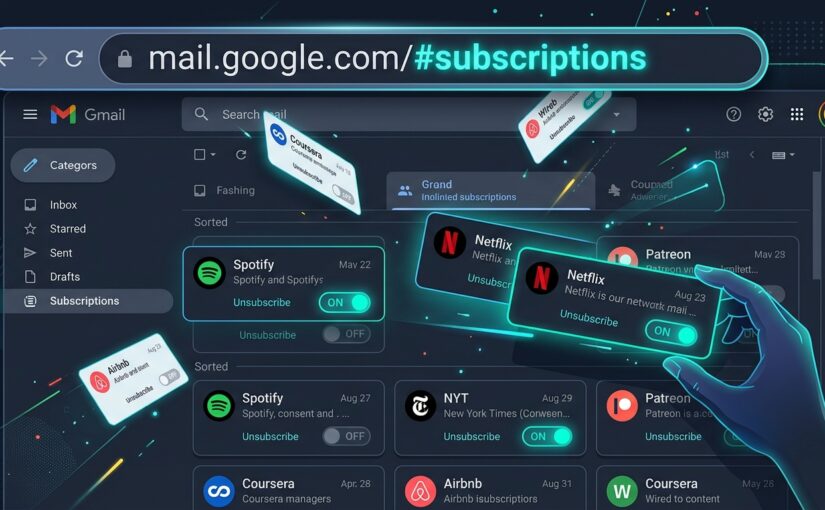
There is a much cleaner way. Google built a native subscription manager right inside Gmail—and you can jump straight to it with a dead-simple three-letter URL trick.


The 3-Letter Address Bar Trick

You don’t need to dig through buried settings menus or wait for a sidebar rollout. You can trigger the dashboard instantly right from your browser.

Here’s all you do:

  1. Open Gmail on your computer browser.
  2. Look up at your browser’s address bar. The URL normally ends with something like:
    https://mail.google.com/mail/u/0/#inbox
  3. Highlight just the word inbox at the very end and replace it with sub.
  4. Press Enter.

Your address will now read: https://mail.google.com/mail/u/0/#sub.

Instantly, Gmail bypasses your inbox feed and opens the hidden Manage Subscriptions dashboard.


What the “Manage Subscriptions” Hub Actually Does

Once you’re in, Gmail gives you a clean, bird’s-eye audit of every sender blasting your inbox. Google categorizes them by volume so you can spot the worst offenders immediately:

  • High-Frequency Spammers: Senders bombarding you with dozens of emails a month get flagged right at the top.
  • Estimated Message Count: You’ll see roughly how many messages each sender dumped into your inbox over the recent quarter (e.g., “10+ emails/quarter”).
  • 1-Click Native Unsubscribe: Next to each sender is an official Unsubscribe button. Click it, and Gmail handles the server-level unsubscribe request automatically—without redirecting you to some shady third-party confirmation page.

Pro-Tip: If you use multiple Google accounts (like a work account and a personal one), the number in the URL (/u/0/ or /u/1/) tells Gmail which profile you’re looking at. Just leave the number alone and only swap out the word after the hashtag.


Why You Should Ditch 3rd-Party “Clean Your Inbox” Tools

As an IT specialist, one of the most common issues I see on personal laptops is folks granting OAuth tokens to sketchy “Inbox Cleaner” web apps. Years ago, researchers caught popular inbox cleaning services harvesting user emails and selling anonymized shopping data to marketing firms.

You don’t need them. Using Gmail’s native #sub view gives you the exact same bulk-cleanup power, keeps your data strictly inside your existing Google account, and takes less than thirty seconds to run.

Try typing it into your browser bar right now. You might be surprised at who has been filling your inbox without you noticing.

The Fortress Cockpit Paradox: How Tech Can Stop Rogue Pilots Before It’s Too Late

On September 30, 2026, Flydubai Flight FZ1073 was cruising toward Tel Aviv with 174 passengers aboard when a nightmare unfolded at 35,000 feet: the first officer grabbed the cockpit’s emergency crash axe and attacked the captain from behind.

What followed was a desperate, bloody struggle on the flight deck. The captain suffered catastrophic injuries, but with his final ounce of strength, he dragged himself across the floor and pulled the latch to unlock the armored cockpit door.

Off-duty crew and passengers heard the screams, stormed inside, subdued the attacker, and managed an emergency landing in Tabuk, Saudi Arabia. If that captain hadn’t reached the latch in time, the plane would have slammed into the ground. Nobody inside the passenger cabin could have broken in to save them.

That terrifying near-miss exposed a glaring flaw in modern aviation security. It’s a problem familiar to every cybersecurity engineer: The Fortress Paradox. When you build an impenetrable wall to keep the outside world out, you accidentally lock everyone inside with the threat.


How 9/11 Created a Zero-Trust Nightmare

After September 11, international regulators mandated bulletproof, Kevlar-reinforced cockpit doors with electronic deadbolts. The rule was clear: hijackers must never, under any circumstances, force their way into the flight deck.

It worked against external hijackers. But it created a massive blind spot: the insider threat.

We saw it with Germanwings 9525 in 2015, where the co-pilot locked the captain out during a bathroom break and flew an Airbus A320 into the French Alps. We saw it on FedEx 705 back in 1994, where a deadheading flight engineer tried to slaughter the crew with claw hammers. And now, Flydubai 1073.

Right now, if one pilot decides to attack the other, the victim’s only lifeline is physical strength. That is an unacceptable engineering failure in 2026. Here is how modern technology can solve it.


1. Independent Silent Duress Switches (The Bank Teller Model)

Every bank teller has a silent foot-switch under their counter. Cockpits have transponder squawk codes (like 7500 for hijacking), but dialing a 4-digit code into a radio panel while someone is swinging an axe at your head is impossible.

Both pilot seats need concealed, tactile duress switches—either built into the rudder pedal assembly, under the armrest, or behind the sidestick.

  • Instant Alert: A single 2-second press immediately transmits a high-priority duress signal to Air Traffic Control (ATC) and sounds a silent visual alert on the flight attendant interphone panels.
  • Door Latch Override: Tapping the emergency switch automatically disarms the cockpit door’s internal deadbolt lock for 60 seconds, allowing cabin crew to enter using their emergency keypad PIN without waiting for pilot approval.

If Captain Machchhar had a floor switch, he wouldn’t have had to crawl across the floor while bleeding to let help in.

2. Smart Retention & Interlocks for the Crash Axe

Every commercial airliner cockpit carries a heavy metal crash axe behind the pilot’s seat. It’s mandated by international regulations for firefighting, prying open jammed panels, or chopping through cockpit walls during an emergency egress.

Think about the absurdity of this setup: a deadly weapon hangs within arm’s reach inside an enclosed, locked space with zero monitoring.

The fix is simple physical security:

  • Magnetic Interlock Sensors: The axe should sit in an electronically monitored holster. The second the tool is unlatched during cruising flight, an audible alarm triggers in the flight deck and sends an alert to the cabin chief.
  • Impact & Depressurization Release: Keep the axe locked behind an electronic latch that only releases automatically when cabin pressure drops, on fire detection, or upon impact sensors—or via a dual-pilot confirmation button.

3. Cryptographic Remote Ground Unlock (Air-to-Ground 2FA)

Whenever you mention remote-controlling anything on an airplane, aviation engineers cringe. And with good reason: nobody wants hackers breaking into an aircraft via SATCOM Wi-Fi.

Remote door unlocking doesn’t need to touch the flight controls. It can operate on a completely air-gapped, zero-trust hardware architecture.

Here is how it can work securely:

  • Dual-Custody Key Authorization: Just like launching a missile or transferring billions in corporate funds, a ground unlock requires two digital cryptographic signatures—one from the airline’s Chief Flight Dispatcher and one from National Air Traffic Control.
  • Hardware Security Module (HSM): An onboard cryptographic chip verifies the signed command over SATCOM (ACARS). Once verified, the chip pulses a 12-volt relay directly to the door solenoid, dropping the lock.
  • Zero Control Surface Access: The circuit connects only to the door latch magnet. It has zero bus connection to the autopilot, fly-by-wire computers, or engine FADEC. Even if a bad actor spoofed the key, all they could do is pop a door latch—not steer the plane.

4. Autonomous Envelope Protection (Emergency Autoland)

During the struggle on Flydubai 1073, the aircraft plunged over 16,000 feet in roughly 30 seconds. In Germanwings 9525, the co-pilot dialed the autopilot altitude down to 100 feet.

General aviation already solved this with systems like Garmin Emergency Autoland. With a single button press—or when flight computers detect an incapacitated pilot—the system calculates terrain, communicates with ATC, flies the plane, lowers the gear, and lands automatically on the nearest runway.

Adapting this to commercial airliners provides the ultimate safeguard: if an uncommanded dive or violent flight deck telemetry is detected while an emergency duress switch is active, the aircraft overrides irrational flight inputs, levels off at a safe altitude, and squawks an automatic MAYDAY.


The IT Takeaway: Security That Doesn’t Blind Itself

In IT, we learned long ago that perimeter security alone is a death trap. If your firewalls keep the world out but you grant unrestricted, unmonitored privileges to someone sitting on the internal network, you haven’t built security—you’ve built an illusion.

Aviation fixed the external threat in 2001. Now it’s time to fix the inside. A captain shouldn’t have to survive an axe strike and drag themselves across the floor just to get someone to open a door.

Google Earth Has a Secret Flight Simulator Hiding in Plain Sight — Here’s How to Fly It

Most people open Google Earth for two reasons: checking what their childhood home looks like from space, or scoping out a vacation rental before booking it. But tucked right inside Google Earth is an entire 3D flight simulator waiting to be switched on.

No expensive flight sticks required. No paid expansions. Just a quick setting or a secret three-key combo that drops you right into the cockpit of an airplane buzzing over real 3D terrain anywhere on the planet.

Whether you’re stuck on a boring conference call or just want to see what your daily commute looks like at Mach 1, here’s how to fire it up—both right in your web browser and in the classic desktop version.


Option 1: Play Right in Your Web Browser (Zero Install)

If you’re on a locked-down work laptop or a Chromebook where you can’t install desktop software, don’t worry. You can run the flight simulator directly inside Chrome, Edge, or Firefox without downloading a single file.

Here is the browser path:

  1. Head to Google Earth: Open your desktop browser and go to earth.google.com.
  2. Initialize the 3D globe: Click the Explore Earth button on the landing page to load the full 3D WebGL engine.
  3. Pick your scenery: Use the search box or spin the globe to center on the area you want to fly over (the Swiss Alps, downtown Tokyo, or the Grand Canyon are awesome starting spots).
  4. Open the Tools menu: In the top navigation bar, click on Tools.
  5. Launch the sim: Select Flight simulator from the dropdown menu.

That’s it. Your browser switches into 3D flight mode immediately. You can throttle up using Page Up, pitch and bank with your arrow keys or mouse, and cruise over real satellite photogrammetry in full screen.


Option 2: The Classic Full-Fidelity Desktop App (Google Earth Pro)

The browser version is great for quick fun. But if you want the original, full-featured flight simulator—with realistic head-up telemetry, dual aircraft selection, flap controls, and actual airport runway takeoffs—you want Google Earth Pro for Desktop.

It’s completely free to download from Google for Windows, macOS, and Linux.

The Secret Easter Egg Keystroke

Back in 2007, a couple of clever Google engineers quietly slipped the flight sim into Google Earth 4.2 as an unannounced Easter egg. Tech forums caught wind of the secret keystroke, and it became so wildly popular that Google kept it permanently.

Once you open Google Earth Pro on your desktop, launch it with:

  • Windows & Linux: Press Ctrl + Alt + A
  • Mac: Press Command + Option + A
  • Or via the menu: Click Tools > Enter Flight Simulator…

A dialog window will pop up asking you to pick your wings and your departure runway.

Pick Your Aircraft

  • F-16 Fighting Falcon: Raw speed, twin-engine afterburners, and knife-edge agility. It climbs like a rocket, but one heavy twitch of the mouse will put you into the side of a skyscraper.
  • SR22 (Cirrus SR22): A four-seat, single-engine propeller plane. Slower, much more forgiving, and ideal if you actually want to look out the window at the scenery. Start here.

Pick Your Starting Runway

You can line up on the runway at dozens of international airports—like Los Angeles (LAX), Zurich, Kathmandu (Lukla for an extreme challenge), or Sydney. Or choose Current view to spawn mid-air right above wherever you were looking before opening the menu.


Flight Controls: How Not to Crash in 15 Seconds

Google Earth supports USB joysticks if you have one plugged into your rig. But most of us will be flying with mouse and keyboard.

The moment flight mode starts, click once right in the middle of the screen. Your mouse cursor turns into a small + crosshair. That crosshair acts as your flight stick—push forward to dive, pull back to climb, and nudge left or right to bank.

ActionKeyboard Command
Throttle UpPage Up
Throttle DownPage Down
Pitch Down / Up (Elevators)Mouse push forward / pull back (or Up / Down Arrows)
Bank Left / Right (Ailerons)Mouse move left / right (or Left / Right Arrows)
Rudder Left / RightInsert / Enter (numeric keypad), or Shift + Left / Right Arrow
Extend FlapsF
Retract FlapsShift + F
Landing Gear ToggleG
Wheel Brakes, (left brake) and . (right brake)
Pause / UnpauseSpacebar
Exit Flight SimEscape

Reading the Head-Up Display (HUD)

In the desktop version, you’ll see a green HUD overlay drawn right across the horizon:

  • Speed (Knots): The number in the top-left corner. If your speed drops below 60 knots in the SR22, you’ll stall.
  • Heading: The degree numbers at the top center showing your compass direction.
  • Pitch & Bank Ladder: The parallel horizontal lines in the middle showing your artificial horizon. Keep the crosshair centered on the horizon line for level flight.
  • Altitude (Feet): The numbers in the top-right corner showing your height above sea level.
  • Throttle Bar: The vertical gauge on the bottom left. 100% means full power.
  • Flaps & Gear Indicators: Small readout indicators on the bottom right telling you whether your landing gear is down or your flaps are extended.

Four Survival Tips for Rookie Pilots

1. Take off smoothly: Tap Page Up until your throttle reaches 100%. Keep the plane centered on the tarmac. Once the SR22 reaches about 75 knots (or the F-16 hits 160+ knots), pull back gently on the mouse. Yanking it too hard guarantees an instant stall.

2. Retract your gear: Hit G as soon as you clear the runway. Leaving your wheels down creates heavy aerodynamic drag and prevents you from gaining altitude.

3. Use micro-movements: Mouse steering is sensitive. Keep the + crosshair inside the center box. Millimeter movements are all it takes to bank cleanly.

4. Don’t panic—hit Spacebar: If you find yourself in a terrifying inverted tailspin over downtown Manhattan, hit Spacebar to freeze the simulation. Center your mouse cursor, breathe, and press Spacebar again to level out.

It won’t replace a multi-gigabyte modern simulator rig, but having an instant 3D airplane engine tied directly to planet-scale satellite data right on your machine is still one of the coolest hidden features on the internet. Go take a flight.