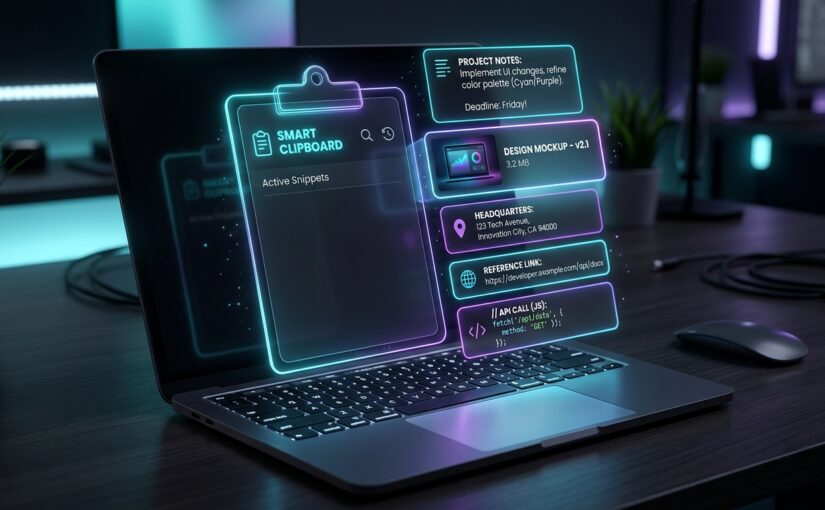
Here is a scenario that happens to almost everyone at least once a day: You copy a tracking number, get distracted for five seconds, copy someone’s name, and suddenly realize your tracking number vanished into thin air.
Now you’re stuck clicking back and forth between two browser windows, juggling tabs, and doing the slow Ctrl + C and Ctrl + V shuffle like it’s 1995.
You don’t have to do that anymore. Windows has a built-in multi-item memory bank that remembers everything you’ve copied—text, links, addresses, and screenshots. You just have to turn it on with one keystroke.
The Magic Shortcut: Windows Key + V
Most of us have muscle memory for Ctrl + V. But if you swap that Control key for the Windows logo key, something completely different happens.
Press Windows Key + V right now.
If you’ve never used it before, a small popup panel appears near your cursor asking if you want to Turn on Clipboard History. Click Turn on. That is the only setup required—ever.
3 Ways This Saves You Serious Time Every Day
Once Clipboard History is running, here is how your workflow changes:
- Copy 10 Things in a Row Without Pasting: You can copy an address, an email, a phone number, and a product code one after another without switching windows. When you get to your spreadsheet or form, press
Windows + Vand pick whatever you need from the list. - Access Recent Screenshots: If you take a screenshot using
Windows + Shift + S, it saves directly into your Clipboard History panel too. No need to save a temporary image file to your desktop just to paste it into an email. - Pin Things You Type Constantly: Have a meeting link, boilerplate reply, or work ID you type twenty times a week? Hover over it in your clipboard list and click the little Pin icon. Even when you restart your PC or clear your history, pinned snippets stay right where you left them.
Quick Privacy Note: If you copy a sensitive password or credit card number, just tap
Windows + V, click the three dots next to the item, and select Delete. You can also hit Clear all at the top whenever you want a clean slate.
What About Mac Users?
If you’re on macOS, Apple doesn’t have this built natively into the keyboard yet without third-party utilities. Free, open-source utilities like Maccy or Raycast give Mac users the exact same superpower without bogging down your system.
For everyone on a Windows laptop or desktop: hit Win + V today. Once you get used to it, going back to a single-item clipboard feels like typing on a typewriter.