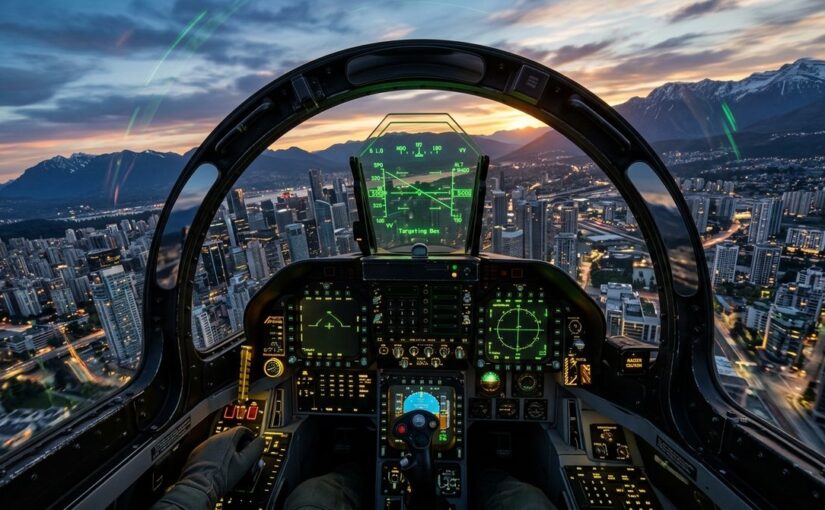
Most people open Google Earth for two reasons: checking what their childhood home looks like from space, or scoping out a vacation rental before booking it. But tucked right inside Google Earth is an entire 3D flight simulator waiting to be switched on.
No expensive flight sticks required. No paid expansions. Just a quick setting or a secret three-key combo that drops you right into the cockpit of an airplane buzzing over real 3D terrain anywhere on the planet.
Whether you’re stuck on a boring conference call or just want to see what your daily commute looks like at Mach 1, here’s how to fire it up—both right in your web browser and in the classic desktop version.
Option 1: Play Right in Your Web Browser (Zero Install)
If you’re on a locked-down work laptop or a Chromebook where you can’t install desktop software, don’t worry. You can run the flight simulator directly inside Chrome, Edge, or Firefox without downloading a single file.
Here is the browser path:
- Head to Google Earth: Open your desktop browser and go to earth.google.com.
- Initialize the 3D globe: Click the Explore Earth button on the landing page to load the full 3D WebGL engine.
- Pick your scenery: Use the search box or spin the globe to center on the area you want to fly over (the Swiss Alps, downtown Tokyo, or the Grand Canyon are awesome starting spots).
- Open the Tools menu: In the top navigation bar, click on Tools.
- Launch the sim: Select Flight simulator from the dropdown menu.
That’s it. Your browser switches into 3D flight mode immediately. You can throttle up using Page Up, pitch and bank with your arrow keys or mouse, and cruise over real satellite photogrammetry in full screen.
Option 2: The Classic Full-Fidelity Desktop App (Google Earth Pro)
The browser version is great for quick fun. But if you want the original, full-featured flight simulator—with realistic head-up telemetry, dual aircraft selection, flap controls, and actual airport runway takeoffs—you want Google Earth Pro for Desktop.
It’s completely free to download from Google for Windows, macOS, and Linux.
The Secret Easter Egg Keystroke
Back in 2007, a couple of clever Google engineers quietly slipped the flight sim into Google Earth 4.2 as an unannounced Easter egg. Tech forums caught wind of the secret keystroke, and it became so wildly popular that Google kept it permanently.
Once you open Google Earth Pro on your desktop, launch it with:
- Windows & Linux: Press
Ctrl + Alt + A - Mac: Press
Command + Option + A - Or via the menu: Click Tools > Enter Flight Simulator…
A dialog window will pop up asking you to pick your wings and your departure runway.
Pick Your Aircraft
- F-16 Fighting Falcon: Raw speed, twin-engine afterburners, and knife-edge agility. It climbs like a rocket, but one heavy twitch of the mouse will put you into the side of a skyscraper.
- SR22 (Cirrus SR22): A four-seat, single-engine propeller plane. Slower, much more forgiving, and ideal if you actually want to look out the window at the scenery. Start here.
Pick Your Starting Runway
You can line up on the runway at dozens of international airports—like Los Angeles (LAX), Zurich, Kathmandu (Lukla for an extreme challenge), or Sydney. Or choose Current view to spawn mid-air right above wherever you were looking before opening the menu.
Flight Controls: How Not to Crash in 15 Seconds
Google Earth supports USB joysticks if you have one plugged into your rig. But most of us will be flying with mouse and keyboard.
The moment flight mode starts, click once right in the middle of the screen. Your mouse cursor turns into a small + crosshair. That crosshair acts as your flight stick—push forward to dive, pull back to climb, and nudge left or right to bank.
| Action | Keyboard Command |
|---|---|
| Throttle Up | Page Up |
| Throttle Down | Page Down |
| Pitch Down / Up (Elevators) | Mouse push forward / pull back (or Up / Down Arrows) |
| Bank Left / Right (Ailerons) | Mouse move left / right (or Left / Right Arrows) |
| Rudder Left / Right | Insert / Enter (numeric keypad), or Shift + Left / Right Arrow |
| Extend Flaps | F |
| Retract Flaps | Shift + F |
| Landing Gear Toggle | G |
| Wheel Brakes | , (left brake) and . (right brake) |
| Pause / Unpause | Spacebar |
| Exit Flight Sim | Escape |
Reading the Head-Up Display (HUD)
In the desktop version, you’ll see a green HUD overlay drawn right across the horizon:
- Speed (Knots): The number in the top-left corner. If your speed drops below 60 knots in the SR22, you’ll stall.
- Heading: The degree numbers at the top center showing your compass direction.
- Pitch & Bank Ladder: The parallel horizontal lines in the middle showing your artificial horizon. Keep the crosshair centered on the horizon line for level flight.
- Altitude (Feet): The numbers in the top-right corner showing your height above sea level.
- Throttle Bar: The vertical gauge on the bottom left. 100% means full power.
- Flaps & Gear Indicators: Small readout indicators on the bottom right telling you whether your landing gear is down or your flaps are extended.
Four Survival Tips for Rookie Pilots
1. Take off smoothly: Tap Page Up until your throttle reaches 100%. Keep the plane centered on the tarmac. Once the SR22 reaches about 75 knots (or the F-16 hits 160+ knots), pull back gently on the mouse. Yanking it too hard guarantees an instant stall.
2. Retract your gear: Hit G as soon as you clear the runway. Leaving your wheels down creates heavy aerodynamic drag and prevents you from gaining altitude.
3. Use micro-movements: Mouse steering is sensitive. Keep the + crosshair inside the center box. Millimeter movements are all it takes to bank cleanly.
4. Don’t panic—hit Spacebar: If you find yourself in a terrifying inverted tailspin over downtown Manhattan, hit Spacebar to freeze the simulation. Center your mouse cursor, breathe, and press Spacebar again to level out.
It won’t replace a multi-gigabyte modern simulator rig, but having an instant 3D airplane engine tied directly to planet-scale satellite data right on your machine is still one of the coolest hidden features on the internet. Go take a flight.