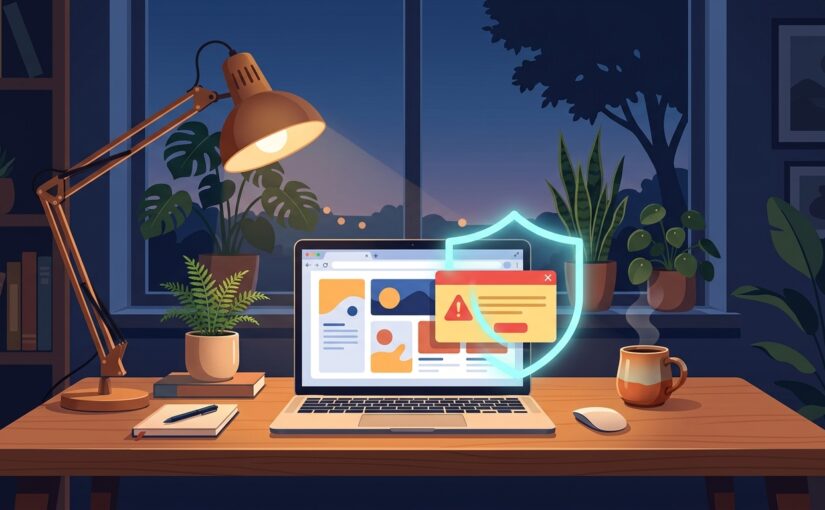
You are trying to read a local news article or look up a quick recipe. Suddenly, the page blurs out. A clean, official-looking box pops up right in the middle of your screen: “Google Chrome needs a critical update to display this page” or “Cloudflare Verification: Follow these 3 steps to prove you are human.”
It doesn’t ask for your credit card. It doesn’t even ask for your password.
Instead, it tells you to press a couple of keys on your keyboard, paste a “verification code” to fix the error, and hit Enter. Takes five seconds. And just like that, you’ve unlocked the back door to your own computer.
Why Smart People Are Falling for “ClickFix”
Security folks call this ClickFix, and it’s easily the sneakiest scam making the rounds right now.
For years, we trained ourselves to spot bad guys by looking for Nigerian princes, terrible grammar, and sketchy .exe attachments. Scammers noticed. So they stopped sending obvious junk files and started hijacking the muscle memory you already use every day.
Here is the trick: when you click the button on that fake “Verify You Are Human” or “Fix Browser Error” pop-up, the website quietly copies a hidden line of code onto your computer’s clipboard—the exact same place text goes when you hit Ctrl + C.
Then, the pop-up gives you a tiny recipe:
- “Press Windows Key + R to open the verification box.”
- “Press Ctrl + V to paste your unique verification token.”
- “Press Enter to reload the page.”
Except Windows + R isn’t a browser verification box. It’s the Windows Run prompt—a direct hotline to your computer’s deepest settings. When you hit paste and Enter, you aren’t verifying anything. You’re telling Windows to silently download and run an info-stealing program that grabs every saved password and active login session sitting in your browser.
On Macs, the scam pulls the exact same stunt using the Terminal app. Because you typed the shortcut and you hit Enter, your antivirus often shrugs and lets it happen.
3 Fixes to Shut Down Fake Update Traps
You don’t need paid security software to stay safe from this. You just need to know how your browser actually behaves—and flip two switches.
Fix 1: Learn How Real Browser Updates Work
Write this on a sticky note if you have to: Chrome, Edge, Safari, and Firefox will never interrupt a webpage to demand an update.
Real browser updates happen quietly in the background. When one is ready, you’ll just see a tiny colored dot or an “Update” pill up in the top-right corner next to your address bar. If a giant graphic inside the webpage window claims your browser is out of date, missing a video font, or needs a manual command to render text, close the tab immediately. It’s a trap. Every single time.
Fix 2: Turn On “Enhanced Protection” in Chrome or Edge
Both Chrome and Microsoft Edge have a built-in bouncer that checks shady domains in real time before the fake pop-up even loads. Most people leave it on the standard setting, which waits for known bad sites to hit a list that might be hours old.
- In Chrome: Click the three dots in the top-right corner, go to Settings -> Privacy and security -> Security, and select Enhanced protection.
- In Edge: Go to Settings -> Privacy, search, and services, scroll down to Security, and switch Microsoft Defender SmartScreen to Strict.
Fix 3: Never Paste Anything Outside a Document or Chat
Treat the Windows Run box (Win + R), PowerShell, and the Mac Terminal like the fuse box in your basement. Unless you work in IT and wrote the command yourself, no legitimate website—not Google, not Cloudflare, not your bank, not Netflix—will ever ask you to open a system prompt and paste text from a webpage.
If a site says you have to run a command to prove you aren’t a robot, hit Ctrl + W (or Cmd + W on a Mac) to slam the tab shut.
The 60-Second Check
Take one minute right now to check your browser’s real update status—the safe way:
- Look at the very top-right corner of your browser window (above the webpage itself) and click the three dots menu.
- Hover over Help and click About Google Chrome (or About Microsoft Edge).
- Watch the screen check for updates automatically. If it says “Chrome is up to date,” you’re golden—and the next time a random website screams that your browser is broken, you’ll know for a fact it’s lying.