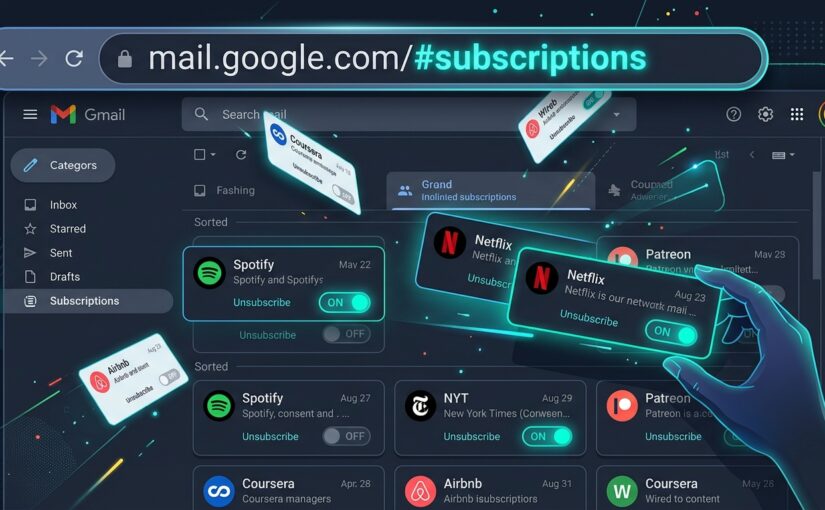
If your Gmail inbox looks anything like mine on a Monday morning, it’s probably drowning in a sea of promotional flyers, automated newsletters you don’t remember signing up for, and daily “deals” you never asked to see.
Most people handle this in one of two ways. Either they give up and let thousands of unread emails pile up forever, or they waste hours opening individual emails, scrolling to the bottom, squinting for the tiny gray “unsubscribe” link, and praying it actually works.
Some folks even turn to third-party inbox cleaner apps. Please don’t do that. Handing a random app full read-and-delete access to your private email just to clear out spam is a privacy nightmare waiting to happen.
There is a much cleaner way. Google built a native subscription manager right inside Gmail—and you can jump straight to it with a dead-simple three-letter URL trick.
The 3-Letter Address Bar Trick
You don’t need to dig through buried settings menus or wait for a sidebar rollout. You can trigger the dashboard instantly right from your browser.
Here’s all you do:
- Open Gmail on your computer browser.
- Look up at your browser’s address bar. The URL normally ends with something like:
https://mail.google.com/mail/u/0/#inbox - Highlight just the word
inboxat the very end and replace it withsub. - Press Enter.
Your address will now read: https://mail.google.com/mail/u/0/#sub.
Instantly, Gmail bypasses your inbox feed and opens the hidden Manage Subscriptions dashboard.
What the “Manage Subscriptions” Hub Actually Does
Once you’re in, Gmail gives you a clean, bird’s-eye audit of every sender blasting your inbox. Google categorizes them by volume so you can spot the worst offenders immediately:
- High-Frequency Spammers: Senders bombarding you with dozens of emails a month get flagged right at the top.
- Estimated Message Count: You’ll see roughly how many messages each sender dumped into your inbox over the recent quarter (e.g., “10+ emails/quarter”).
- 1-Click Native Unsubscribe: Next to each sender is an official Unsubscribe button. Click it, and Gmail handles the server-level unsubscribe request automatically—without redirecting you to some shady third-party confirmation page.
Pro-Tip: If you use multiple Google accounts (like a work account and a personal one), the number in the URL (
/u/0/or/u/1/) tells Gmail which profile you’re looking at. Just leave the number alone and only swap out the word after the hashtag.
Why You Should Ditch 3rd-Party “Clean Your Inbox” Tools
As an IT specialist, one of the most common issues I see on personal laptops is folks granting OAuth tokens to sketchy “Inbox Cleaner” web apps. Years ago, researchers caught popular inbox cleaning services harvesting user emails and selling anonymized shopping data to marketing firms.
You don’t need them. Using Gmail’s native #sub view gives you the exact same bulk-cleanup power, keeps your data strictly inside your existing Google account, and takes less than thirty seconds to run.
Try typing it into your browser bar right now. You might be surprised at who has been filling your inbox without you noticing.