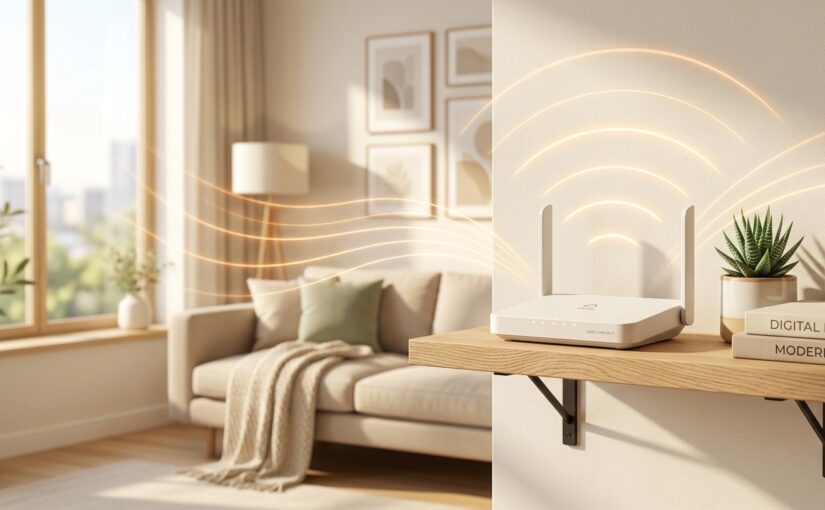
Why Your Wi-Fi Drops in the Bedroom (And Why That $30 Extender Won’t Fix It)

You pay for 500 Mbps internet. You run a speed test next to your router and feel like a genius: crisp, clean numbers.

Then you sit down on your couch, open a video on your phone, and get hit with the spinning wheel of death.

Your first instinct? Head over to Amazon, search for a cheap “Wi-Fi booster,” plug it into a hallway socket, and pray.

Don’t buy it. Nine times out of ten, cheap plug-in Wi-Fi extenders only amplify a bad signal. You’re essentially giving a megaphone to someone who is whispering from two rooms away. Loud static is still static.

Before you spend a single dollar, let’s walk through what’s actually killing your connection—and the three tweaks that fix it for free (or close to it).


1. Where Is Your Router Hiding?

Be honest. Is it tucked behind the smart TV, buried inside a wooden credenza, or sitting on the floor behind a dusty tangle of cords?

Wi-Fi signals are high-frequency radio waves. They hate obstacles. Specifically:

  • Metal and mirrors: These act like acoustic walls. If your router sits next to a large mirror or behind a metal cabinet, half your signal bounces right back into the wall.
  • Brick and plaster: Standard drywall drops signal by about 10–15%. Old-school plaster with metal lath or concrete can wipe out 80% of it.
  • Fish tanks and large plants: Water absorbs 2.4 GHz and 5 GHz radio frequencies exceptionally well. A 50-gallon aquarium might as well be a lead vault.

The Fix: Pull it out. Put it at waist height or higher on an open shelf, centered in the house whenever possible. Just getting it off the floor and out from behind the entertainment center can double your signal reach in the rooms you care about.


2. The 2.4 GHz vs. 5 GHz Trap

Most routers broadcast two networks: 2.4 GHz and 5 GHz (or 6 GHz if you have Wi-Fi 6E/7).

Here’s the difference in plain English:

  • 5 GHz is a sports car on an open highway. Blazing fast, but it can’t handle speed bumps (walls).
  • 2.4 GHz is an old pickup truck. It’s slower and crowded with interference from your microwave and baby monitors, but it punches through walls like a champ.

If your router combines both bands under a single name (often called “Smart Connect” or “Band Steering”), your device might get stuck on the sluggish 2.4 GHz band and never switch back.

The Fix: Log into your router’s settings (usually written on a sticker on the bottom) and see if you can separate the networks. Name one HomeNetwork_5G and the other HomeNetwork_2G.

Put your work laptop, gaming console, and streaming boxes on the 5 GHz band. Leave your smart light bulbs, robot vacuum, and garage openers on the 2.4 GHz network.


3. The ISP Rental Myth

Are you still using the all-in-one modem/router combo your internet provider handed you three years ago?

Check your bill. If you see a $10–$15 monthly “equipment fee,” you’ve probably bought that device twice over by now.

Worse, provider-supplied units are built to be cheap and reliable enough to stop you from calling support—not to blanket a multi-story home with high-speed coverage.

The Fix: If your house is over 1,800 square feet, drop the single router dream. Skip the cheap plug-in boosters and look at a Mesh Wi-Fi system (like Eero, TP-Link Deco, or Asus ZenWiFi). A two-pack or three-pack creates a seamless net across your home without separate network names or awkward disconnects.


Quick 60-Second Sanity Check

Try this right now:

1. Walk to your router.

2. Unplug the power cable, wait 30 seconds (yes, actually 30 seconds—let the capacitors drain), and plug it back in.

3. Move the router out into the open air.

If that doesn’t solve your dead spot, shoot us a message or leave a comment below with your home layout. We’ll tell you the exact setup that makes sense without wasting money on gear you don’t need.

The 3-2-1 Backup Rule: How to Never Lose Family Photos or Tax Records Again

There are two types of computer owners: those who have lost all their data, and those who are about to.

It usually happens on a random Tuesday. You knock a mug of coffee across your MacBook keyboard. Or your laptop takes a tumble off the kitchen island. Or your PC screen turns blue with an error code that sounds like bad sci-fi dialog: CRITICAL_PROCESS_DIED.

You rush it to a repair desk. The tech looks up with that grim doctor face and says the words nobody wants to hear: “The drive is toasted. Did you have a backup?”

Most people say no. Or worse: “I think my phone was syncing something, maybe?”

Data recovery labs charge anywhere from $500 to $2,500 to pull files from a dead drive—with zero guarantee they’ll salvage anything.

You don’t need expensive enterprise software to protect yourself. You just need the classic 3-2-1 Backup Rule, adapted for regular people.


What Is the 3-2-1 Rule?

It sounds like technical jargon from an IT seminar. It isn’t. Break it down:

  • 3 copies of your important files (your working copy on your computer, plus two backups).
  • 2 different storage types (for example, your laptop drive and an external USB hard drive).
  • 1 copy stored off-site (in the cloud or kept at another location).

Here’s why having just one backup isn’t enough: If your house has a power surge or a burst pipe, both your laptop and the external hard drive sitting right next to it can get fried at the exact same moment.

One copy off-site saves you when physical reality strikes.


The Cheap, Painless Setup (Step-by-Step)

You can set this up once and practically forget about it. Here is the exact combination we recommend to friends and family:

#### 1. The Local Backup (Fast & Full-System)

Buy a basic 1TB or 2TB external SSD or portable hard drive (WD My Passport or Samsung T7—usually around $60 to $110).

  • On Mac: Plug it in and click Use as Backup Disk when Time Machine prompts you. Time Machine silently takes snapshots every hour. If your laptop dies, you plug this drive into a new Mac and your desktop looks identical down to your wallpaper.
  • On Windows: Use the built-in File History tool (or an inexpensive tool like Macrium Reflect). Point it to your external drive, set it to run daily, and let it do its thing.

#### 2. The Cloud Backup (Fire, Flood, and Theft Insurance)

Syncing is not the same as a backup.

If you use Google Drive, Dropbox, or OneDrive, remember this: if a virus encrypts your files or you accidentally delete a critical folder, that deletion syncs everywhere in three seconds flat.

For true set-it-and-forget-it cloud backup, use an unlimited background backup service like Backblaze (around $9/month).

  • Install the lightweight client.
  • Let it quietly upload your Documents, Photos, and Desktop in the background.
  • Done. If someone steals your backpack at an airport, your entire digital life is waiting in the cloud.

What Deserves to Be Backed Up?

Don’t waste time backing up things you can easily redownload:

  • Skip Steam game installs, Spotify downloads, and your browser cache.
  • Focus on the irreplaceable: tax returns, family photo albums, financial spreadsheets, scans of medical records, and your work documents.

The 10-Minute Weekend Test

Having a backup you’ve never tested is just having a wish.

This Saturday, test your setup:

1. Open your external drive or log into your cloud account.

2. Find a photo or document from three months ago.

3. Restore it to a test folder on your desktop and make sure it opens.

If it works, congratulations: you’re officially ahead of 90% of computer users.