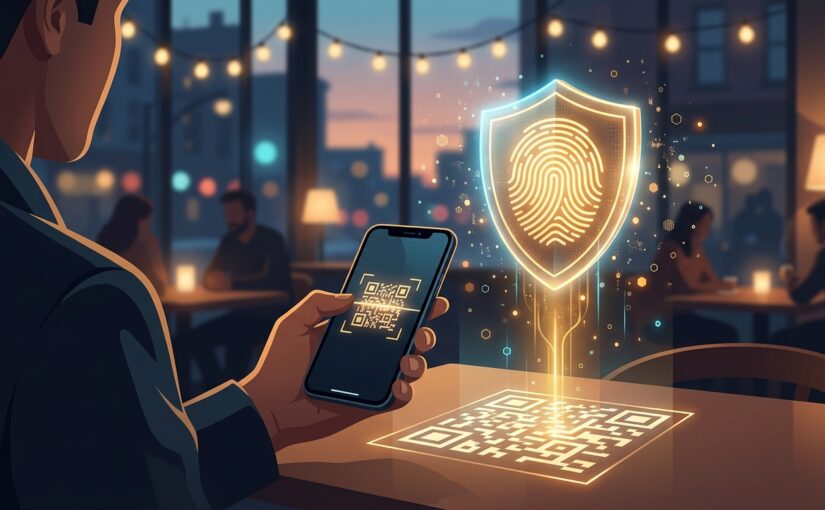
You pull into a downtown parking spot, running ten minutes late for dinner. It’s drizzling. Instead of waiting in line at the pay station down the sidewalk, you spot a big “Scan to Pay” QR code right on the meter post.
You pull out your phone, point the camera, tap the little yellow link, and punch in your login or credit card to pay four bucks. Easy.
Except a guy in a high-visibility vest walked down that street at 6:00 AM and slapped a $0.05 vinyl sticker right over the city’s real QR code. You didn’t pay the city. You just handed your login session and card number straight to a scammer.
Why QR Code Phishing (“Quishing”) Is Everywhere Right Now
Security researchers have a clunky word for this—quishing (QR code phishing)—and it has exploded over the past few months.
Why? Because our email spam filters finally got good at catching sketchy links. When a scammer sends an email with a fake link, Gmail or Outlook scans the URL and dumps it straight into your Junk folder.
A QR code, though, is just a picture of black and white squares. Many corporate and personal spam filters look right past it. Even worse, when you scan a QR code on a parking meter, a restaurant table tent, or a fake package-delivery slip stuck to your front door, you are using your phone—where the browser address bar shrinks down so small you only see the first ten letters of the website name.
Here is the nastiest twist: modern quishing pages use Adversary-in-the-Middle (AiTM) kits.
When you type your email password and your 6-digit SMS text code into the fake page, the scammer’s server relays both to the real website in real time, grabs your active login cookie, and locks you out. That 6-digit text code you thought kept you invincible? It didn’t even slow them down.
3 Fixes to Beat Fake QR Codes and Session Thieves
You don’t have to stop using your phone camera forever. You just need one physical habit and a five-minute upgrade to how you log in.
Fix 1: Do the Fingernail Check (And Skip QR Payments)
Never scan a QR code on a public sign to pay money or log into an account. Full stop.
- At a parking meter: Look at the sign for the name of the official parking app (like ParkMobile, PayByPhone, or Flowbird) and download it directly from the Apple App Store or Google Play Store, or type the short 4-digit zone number inside the app you already have.
- The fingernail test: If you ever have to scan a public code—say, for a restaurant menu—run your thumbnail across the edge of the square first. If it’s a sticker slapped on top of laminated paper or metal, peel it off or walk away.
- In your email: If you get an email claiming your Microsoft 365 password expired, an Amazon return needs confirmation, or your paycheck settings changed—and it tells you to scan a QR code on your computer screen with your phone—delete it immediately. No real company forces you to switch devices just to log in.
Fix 2: Upgrade Your Top 3 Accounts from SMS Codes to Passkeys
If a fake QR code tricks you into visiting login-google-security-check.com, a human might get fooled by the logo. A Passkey never will.
A passkey replaces your password and 6-digit text code with the Face ID or fingerprint reader already on your phone. Because the passkey is mathematically locked to the exact real website address (google.com), it physically refuses to autofill or unlock on a lookalike scam site. You can’t get phished even if you try.
- On Google: Open
myaccount.google.com, click Security, and tap Passkeys and security keys -> Create a passkey. - On Apple / iCloud: Anyone running iOS 17 or newer on an iPhone already has iCloud Passkeys ready in Settings -> Passwords (or the Passwords app).
- On Amazon & PayPal: Go to Account -> Login & Security and turn on Passkey right next to Two-Step Verification.
Fix 3: Turn On Your Phone’s Built-In Scam Link Bouncer
Both iPhones and Android phones have quietly added real-time link checks that warn you before a fake QR page finishes loading—if you leave them turned on.
- On iPhone: Go to Settings -> Apps -> Safari, scroll down to Privacy & Security, and make sure Fraudulent Website Warning is toggled On.
- On Android: Open the Chrome app, tap the three dots -> Settings -> Privacy and security -> Safe Browsing, and switch it to Enhanced protection.
The 60-Second Check
Grab your phone right now and test how your camera handles QR codes:
- Open your Camera app and point it at any QR code (on a cereal box, a router label, or an Amazon package).
- Don’t tap the yellow or white pill that pops up right away. Instead, look closely at the exact web address printed inside the preview bubble (or tap the tiny expand arrow next to the link on iOS/Android).
- If the address is a random jumble of letters like
bit.ly/3x9Pq,qrco.de/..., or a weird.ru/.topdomain instead of the brand’s actual name, close the camera app. You just dodged a trap.